
This is more notes to myself so i don’t forget. Goals:
- no secrets stored on the filesystem (so they can’t be sucked up by credential-harvesting malware)
- individual vault per project
- secrets automatically injected to envvars so that apps can follow 12-Factor App methodology
- deployed secrets use platform native secret manager (e.g. Cloudflare secrets manager, Azure keyvault, AWS SSM Parameter Store etc.)
- separation of this vault from my main password vault in BitWarden. My whole world exists in Bitwarden – i dont want to inadvertently expose it. And as Bitwarden has a pretty awful CLI experience, it doesnt work for me.
- Safe to commit secret file to source control
- Safe to commit my
.envfiles to source control because they no longer contain secrets
Benefits of 1Password:
- tightly integrated CLI tool and desktop app, with MacOS biometric auth integration
- Industry standard toolset, well regarded security position
- relatively cheap – roughly $50 per year
Table of Contents
- Initial set up
- Adding secrets to a project
- Use with VSCode
- Updating or adding new secrets
- Deploying and using secrets in other places
Initial set up
1. Install 1Password, 1password-cli, direnv.
1Password must be the direct download or Homebrew cask version, not the Mac App Store version as App Store enforces sandboxing.
brew install --cask 1password 1password-cli
brew install direnv
2. Configure 1Password desktop app
- Settings > Developer > Turn on “Show 1Password Developer experience”
- Settings > Developer > Turn on “Integrate with 1Password CLI”
- Settings > Security > Turn on “Unlock with Touch ID”
3. Configure shell
Add to ~/.zshrc. This causes direnv to evaluate a .env.tpl file each time you navigate in to a folder, and clear when you navigate out of a folder.
eval "$(direnv hook zsh)"Open a new terminal shell (or type it in the existing one).
Adding secrets to a project
1. Add the secret to 1Password
Create a new vault in 1Password
Vaults are the security separation between projects. There is no hard limit to the number of vaults you can add.
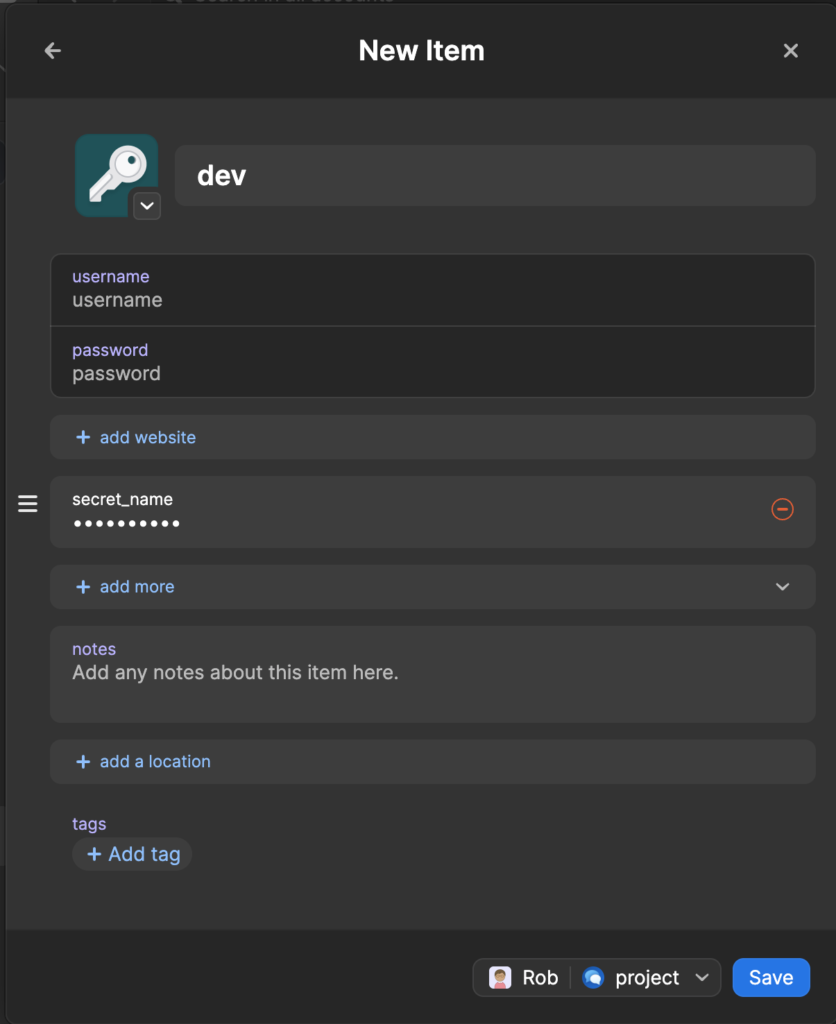
Create a new item per environment
I create a new “password” type per environment. You can then add config as additional “password” types, with the name of the envvar, for example:
2. Create .env.tpl in the project folder
This file is safe to commit – it contains no secrets, only references to secrets – example:
export MY_SECRET="op://project/dev/secret_name"3. Create .envrc in project folder
Also safe to commit. This is what direnv runs on entry. Typically:
eval "$(op inject -i .env.tpl)"One thing to note: if the desktop app is locked and the biometric prompt/login is declined (or times out), the env vars get set to empty strings, not the op:// references.
4. Allow direnv
A security measure…
direnv allow5. Test
Exit the directory and go back in.
❯ cd .. && cd -
~/Downloads/myfolder
direnv: loading ~/Downloads/myfolder/.envrc
direnv: export +MY_SECRET
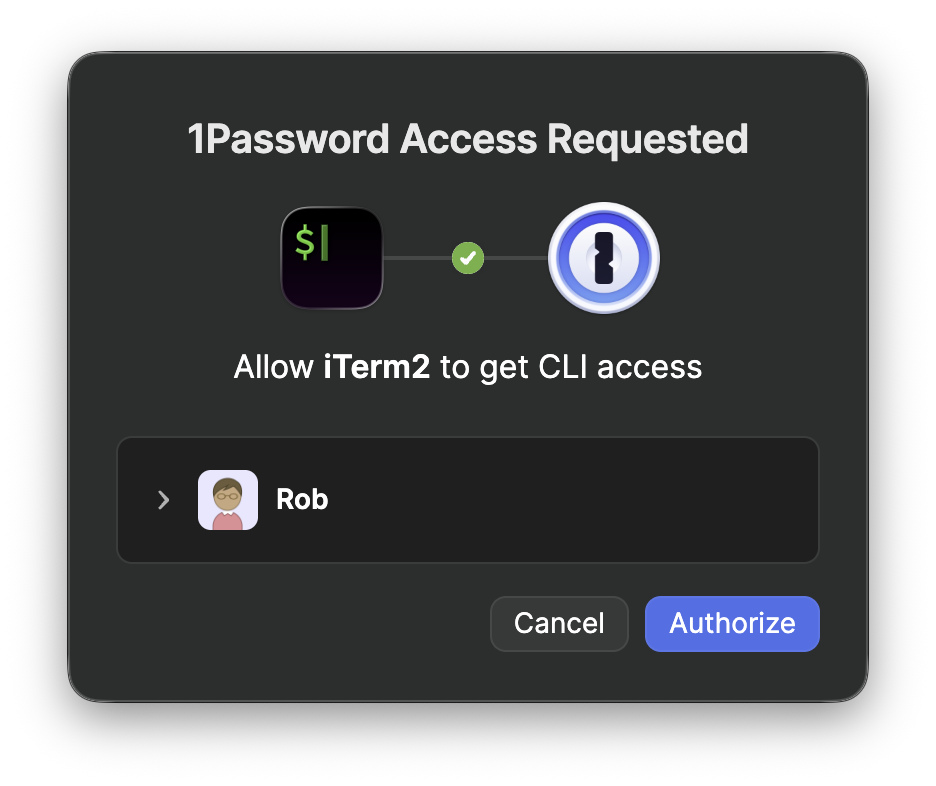
You should see a prompt from 1Password to grant access to the vault. This happens the first time after vault timeout/lock.
Use with VSCode
Install the official mkhl.direnv extension (source). This will read .envrc natively whenever a folder is opened. There’s a direnv: Reload command (Cmd+Shift+P).
Updating or adding new secrets
If new, add the op:// reference to .env.tpl. Update the secret in 1Password, run direnv reload in the folder.
Deploying and using secrets in other places
Platform-native secret stores inject env vars. App code unchanged.
- CI – either:
- Deploy secrets as Github Actions secrets, then mapped to envvars in the workflow
- or use the 1Password Github Action with a Service Account to pull directly from the vault
- Cloudflare:
wrangler secret put SECRET_NAME→ `env.SECRET_NAME` - Azure: Key Vault + managed identity → App Settings with
@Microsoft.KeyVault(SecretUri=…) - AWS: SSM Parameter Store (Standard, free) → env vars in Lambda/ECS task definitions
- Local containers:
op run --env-file=.env.tpl -- docker compose up
Leave a Reply