# How to ensure you can revert changes to function apps
https://blog.cynexia.com/how-to-ensure-you-can-revert-changes-to-function-apps
Author: [Rob Aleck](https://blog.cynexia.com/pages/about) · https://github.com/mnbf9rca · https://www.linkedin.com/in/robertaleck/ · https://family-foqos.app/
Published: 2016-11-01
Categories: Fix, How-to
As I've been playing around with Azure Functions I've slowly outgrown the web-based editor. It's not that it's not useful, it's just that I miss intellisense (I'll come back to this in a later post), and I accidentally deployed a change which broke one of my functions. I'd made dozens of tiny changes, but I simply could not figure out which one it was. Not having a version history, I was kinda screwed.
I had seen the "Configure Continuous Integration" option before, but never really looked at it. I keep my source code in private [GitHub repos](), so it was relatively trivial to set up a new repo tied to this function app. After reading the [setup instructions](), however, I was a little confused by what exactly to do to put my existing functions in to repo, but it was actually much simpler than I thought. It turns out one of the best features is the ability to roll back to a previous commit with a single click:
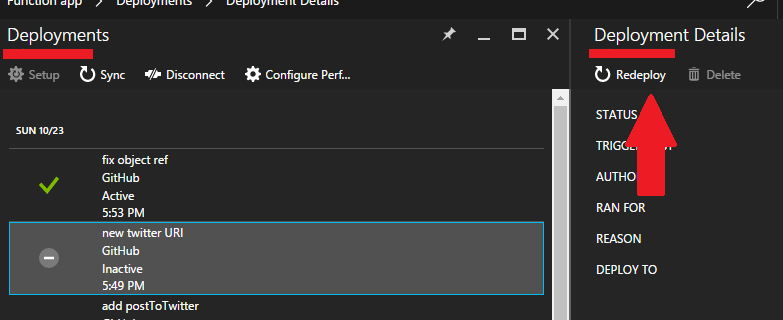
First, I created a new private GitHub repo and cloned it to my local machine. I chose not to use branching - but I guess you could map different function apps to different branches to support a separation between "dev", "test", "production" etc. In the root of my repo, I created a folder for each of the functions I wished to deploy, named exactly the same as the existing functions (I assume they're not case sensitive but I kept to the same case).
Then, I needed to put the actual code in there. Under the visual editor for each of the functions is a "view files" link: . Clicking this, I was able to see the `function.json` and `run.csx` files within each function. I simply cut and pasted the code from there to a file of the same name in the relevant folder.
Next, I needed to find the host.json file. That's a bit more tricky. In the end, I figured the easiest way was to use the Dev Console. Navigate to Function App Settings, and select "Open dev console". After a few seconds, the dev console appears:
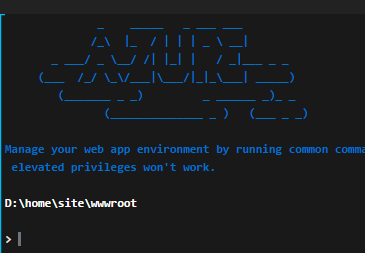
This appears to be a Linux shell. You should start in the d:\home\site\wwwroot folder - that's where host.json lives. Just type cat host.json to see the contents. It turns out mine was empty (just an open and close curly brace):
```
D:\home\site\wwwroot
> ls
D:\home\site\wwwroot
QueueTriggerCSharp1
fetchDepartureBoardOrchestrator
host.json
postToTwitter
> cat host.json
D:\home\site\wwwroot
{}
>
```
I created this in the root of my repo, then committed the changes and pushed them back to GitHub. Within a few seconds, I was able to see the change by clicking "Configure continuous integrations" in Function App Settings. My changes deployed immediately. And when I next screw up, because I'm forced to push changes via GIT, I know I'll be able to roll back to a known-good configuration.